
Last Updated on 2025-11-18 by Daev Roehr
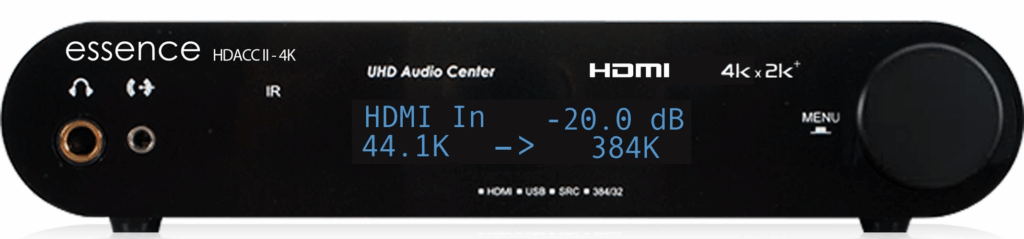
(Incept date: 2025.08)
Note: This is not a “paid” or “for trade” review.
I purchased a standard production unit from Essence to use personally. These are my test notes, impressions, and commentary as I play around with the unit.
The product page is here: hdacc-ii-4k-hdmi-dac,
MSRP is $650 USD.
tl;dr:
If your disc player can play SACD’s and output DoP64 into the HDMI interface, this nifty gizmo will decode the sound for your analog stereo. And it has multiple HDMI inputs, so it’s a great way to add more digital sources to your stereo and a monitor for a sweet two channel A/V system.
Intro:
The Essence HDACC II-4K is a “bridge” device to update your vintage two channel hi-fi system for use with current digital formats, like SACD and Blu-ray A/V signals.
It’s also a “Swiss army knife” type of unit, with a HDMI switch / audio “de-embedder” (extractor) for PCM and DSD formats, a hi-res USB class 2 audio render device, S-P/DIF I/O, a high performance stereo DAC that also handles DSD, and a nifty headphone amp.
(Note that MQA decoding is not provided. That’s no real loss, MQA effectively went obsolete when Tidal streaming dropped support in July 2024.)
The folks at Audio Science did the usual “DAC” style audio tests, so I won’t duplicate what they covered here: essence-hdacc-ii-4k-hdmi-dac.7171/ )
Instead, I’ll focus on A/V compatibility and user experience.
Of special note, the HDACC II-4K:
– Enables current multi-format disc players that don’t have analog outputs (like the Sony UBP-X800M2 disc player I use) to play PCM audio (CD’s, DVD’s, etc) and DSD/DoPCM (SACD’s and files) on your analog hi-fi stereo system. Yay!
– Supports the newest Class 2 USB Audio or “UAC2” connection, so higher sample rates and bit depths on computers, tablets/pads, and phones are supported without any extra awkward audio driver installs.
– Has a simple yet effective status screen to let you know what the device is actually seeing. This is quite useful when you trying to get those tricky bit-unmodified streams to play DSD from your player or computer.
– Features balanced outs to enable easy integration with pro-sound mixers and high end audio gear.
– Nice touches are the locking power connection, a remote that lets you select the desired input directly, and S/P-DIF inputs & outputs for DAC (and some limited ADC) operations.
I have multiple use cases.
1) A simple way to add SACD/DVD and streaming playback to my vintage 2 channel system for all the sources that also need a monitor for setup and operation.
2) My computer workstation is also my daytime sound and A/V system, along with being a test bed for various A/V components. I needed better HDMI switching and sound extraction capabilities for all this.
3) I have a small performance space that I host micro-concerts, movies, and listening parties from time to time. This unit fills in a missing spot for handling a bunch of the A/V sources I use.
Most of my testing will focus on how the HDACC II can fulfill these use cases.
(If you are new to the rather complex topic of DSD/SP-DIF/DoP64/HDMI, etc. see my other page ” Getting SACD sound to your speakers isn’t obvious… ” for an overview, along with a set of terms & definitions at the end of the page.)
Lab testing
Equipment used:
– Altinex TE460-137 HDMI signal generator as my HDMI signal source for video testing, – – My ancient but trusty Audio Precision One for analog and some limited digital audio testing.
– Cambridge Audio DACMagic 200M for comparison and as another DSD DAC
– Onkyo PR-SC5530 pre-pro, my workshop Atmos/DSD decoder. Although older, still useful and it has a very useful status display about the current signal.
I tested the HDACC II-4K with FW version “3.11”.
HDMI Video testing
HDCP 2.2 verified as supported, the handshake was relatively quick.
The HDAC II passed a 720×480 P60 (i.e. Lo-res or “std def”) and 3840×2160 P60 (i.e. Hi-res or 4K/hi-def) video signal, the min and max of my HDMI test equipment. My video generator and monitor do not support VFR or 120Hz, so not tested.
HDMI Audio
Two channel and multichannel audio was passed through correctly.
Devices Testing
Setup:
Like all HDMI devices, the first power on sequence is important to sequence correctly so all the HDMI EDID (Extended Display Identification Data) info and HDCP (High Definition Copy Protection) handshakes are correct from source to endpoint.
Done incorrectly, you’ll be bedeviled by the evil EDID and DHCP pixies for “way too long”. See “Rinse, repeat” below.
Here’s a quote from the Essence folks on the importance of this.
“Setup is straightforward. For the initial setup with a Blu-ray video source, start with all devices disconnected from AC power but connected with HDMI cables. Power up your TV or projector first, then the HDACC II-4K, and finally, your source device. This sequence ensures optimal EDID sync and performance. After this first time, you can power your devices on and off in any order you prefer. If there’s a power outage or odd behaviors, simply repeat this process, as loss of EDID is the primary cause of issues in HDMI-connected systems.”
Rinse, repeat
Me again.
Many HDMI issues with “things are not working right” can be solved by turning everything off, unplugging the devices from power… and also unplugging HDMI cables from all devices. Then wait ten minutes or so.
Yes, I’m serious. Between cache flushing issues, powered cables, revision compatibility issues, and microprocessor timeouts, all this rigamarole is needed to actually reset all the hidden HDMI stuff. Then follow the prior setup steps again.
In short, HDMI wasn’t designed for hot swapping, instead it was rather poorly grafted on.
Also, be very suspicious of your HDMI cables!
A lot of flakiness and general misbehaving can be cured by using current gen HDMI cables! The standard has evolved quite a bit since HDMI was introduced, especially around resolution and frame refresh rates.
And that’s not to mention the connectors are notoriously fragile and can be damaged just by the weight of the cabling. (sigh)
Playing SACD discs via HDMI – my main use case
My test unit is a Sony X700M, set to output DSD and verified as working correctly on my test surround pre/pro, an Onkyo PR-SC5530 with the DSD over HDMI (more accurately called DoP64) decoding feature.
When the player was connected into the HDACC II-4K, HDMI1 (DSD) lit up on the front panel, which seems promising. 🙂
I also tried hooking up my Cambridge Audio DACMagic 200M via a coaxial S/P-DIF cable to test HDMI extraction of DoP64 to S/P-DIF, but was unable to get this to work. The DACMagic 200M claims to support this, but I have no other test source to verify this claim at present. [[ EDNOTE: revisit this. ]]
Computer device – Windows PC
Computer connection – USB Audio
– A standard USB type A to B cable plugged into my Windows 11 PC worked fine with PCM audio, although the type C to B cable I used for the handheld test didn’t work for some reason. Typical weirdness from USB in my experience.

The USB interface supports the newer UAC2 “USB Audio Class 2” standard, which is widely compatible with the PC and handheld ecosystem. The Windows Audio properties box for the HDACC II-4K xCORE device showed everything from 16 bit, 44.1KHz to 24 bit, 384 kHz. I set it to 24, 192K for my testing, and playing my HDTracks hires version of Pink Floyds “Pulse Live” (192khz) duly lit up 192K on the HDACC.
( One slight disappointment was the USB interface is output (DAC) only. I had hoped the USB interface could be also used as an input, this would have made for a killer USB digital audio recording interface. )
Computer USB to HDACC – DSD over USB
The typical windows players (media player, VLC, PowerDVD, etc.) won’t play DSF/DSD files, so I downloaded the Audirvāna demo and used a sample .DSF file to test. A quick trip to the Audirvāna audio setup panel to turn off DSD to PCM resampling and it lit up the USB(DSD) indication and played the sample file. Yay!
Computer HDMI output to HDACC HDMI input
This is a handy way to export sound from your device, it pretty much “just works” as part of your PC’s video connection. It doesn’t chew up a USB port on your PC, it has very low CPU overhead, and is a lot less problematic than a USB connection.
– Works fine with my Win 11 PC and 4K monitor. Now I can switch the monitor between my PC, a home theater system, and my Android phone. Yay.
Computer optical S/P-DIF output to HDACC II-4K optical input
Most (All?) current Windows PC’s sport the now ubiquitous HD Audio or “Azalia” codec, the successor to the earlier AC-97 codec for audio I/O needs. Among other improvements, the HD Audio chip supports S-P/DIF I/O… and it turns out some PC systems implement a “hidden” optical output doubled up in the 1/8″ headphone jack. (Optical connections have a big advantage in keeping system noise out of your audio, and there’s no ground loop issues either.)
To use, you need the weirdo adaptor (search for “Toslink to Mini Optical Adapter”) and a standard Toslink optical cable.
– PCM data worked perfectly
– I was unable to stream DSD through this connection. This appears to be a PC side issue, but I haven’t had time to run it down yet. [[ EDNOTE: revisit this. ]]
( Sorry, I don’t currently have any MacOS or Linux systems to test with. )
Handheld/mobile device – Android
Handheld – USB C connection – Audio over USB to HDACC II USB B connection
– Plugging my Google pixel 8a into the HDACC II-4K via a USB C to type B cable worked fine with PCM data.
– Have not tested DSD data yet.
Handheld USB C to HDACC II HDMI connection
I used a couple different USB C mini hubs that output 1024 x 768 video over the HDMI connection. They all worked fine with the HDACC II, no audio tics or dropout issues.
iPad device
In the past, I’ve had lots of issues with iPads working with generic USB-C to USB/HDMI adaptors. It appears the “apple secret sauce” is still in effect.
Therefore, all testing here was done with the official OEM apple logo’d adaptor unless otherwise stated.
Also, these are brief go/no go tests of 5 minutes or so, so not terribly comprehensive.
iPad – USB audio
Not tested yet
iPad – apple adaptor HDMI to HDAC II HDMI
Streamed from Spotify and HBOMax, no audio tics or dropout issues.
Sample rate 44.1, perhaps dictated by the test monitor’s EDID? Will try another system.
Idiosyncrasies to be aware of:
1) Headphone jack
The “Fixed vs Variable” output setting also affects the headphone jack operation.
(I expected the volume control to always adjust the headphone jack, and the “Fixed vs Variable” setting to only affect the RCA and XLR outputs, that is not the case.)
Fixed mode can be thought of as a straight line DAC, with no headphone volume control.
2) L/R HDMI stream channels
In keeping with its purist nature, the HDACC II does not down-mix, it simply extracts the Front Left and Right channels from the multichannel stream. Be sure to set your source (eg SACD player) to play 2 channel audio, else you might be missing some music details! (I assume the same holds true for multi-channel PCM formats as well.)
[EDNOTE: are there interactions with EDID to be aware of here? ]
Author Notes:
1) See if Essence has a signal processing block diagram they can share.
(Answer: No, it’s proprietary.)
2) Clarify if DoP64 extraction from HDMI stream is presented to the S-P/DIF output connections or not.
(Answer: Confirmed, by design 1 bit DSD is present on both digital outputs.)
3) It is unclear what happens with upsampling when DSD streams are present, i.e. ignore, convert to PCM, ?
(Answer: Upsampling is automatically bypassed when playing hi-res files, as it is primarily beneficial for improving the sound of lossy sources like CDs, vinyl, and tape. The 24-bit processing significantly enhances the sound quality of these non-native hi-res sources.)
4) More clarity on EDID interactions of monitor features vs HDACC II-4K features, eg what happens when the monitor only supports 44.1K?
USB device compatibility note:
tl,dr; Generally, sample rates over 96K aren’t available in UAC1 devices without a special driver install. UAC2 fixes that.
How to verify driverless hires operation for a USB Audio Class 2 Device or “UAC2”)
Windows: On a computer with Windows 10 (version 1703 or later), a Class 2.0 device should be automatically recognized and use the built-in usbaudio2.sys driver, visible in Device Manager “Properties->Details” tab as “USB Audio Class 2 Device” under the or the product’s name.
MacOs: A UAC2 Device should “just work” with the standard Core Audio driver
iOS: A UAC2 Device should “just work” with the standard Core Audio driver
Android: A UAC2 Device should “just work” with the standard ALSA driver
Linux: ??